
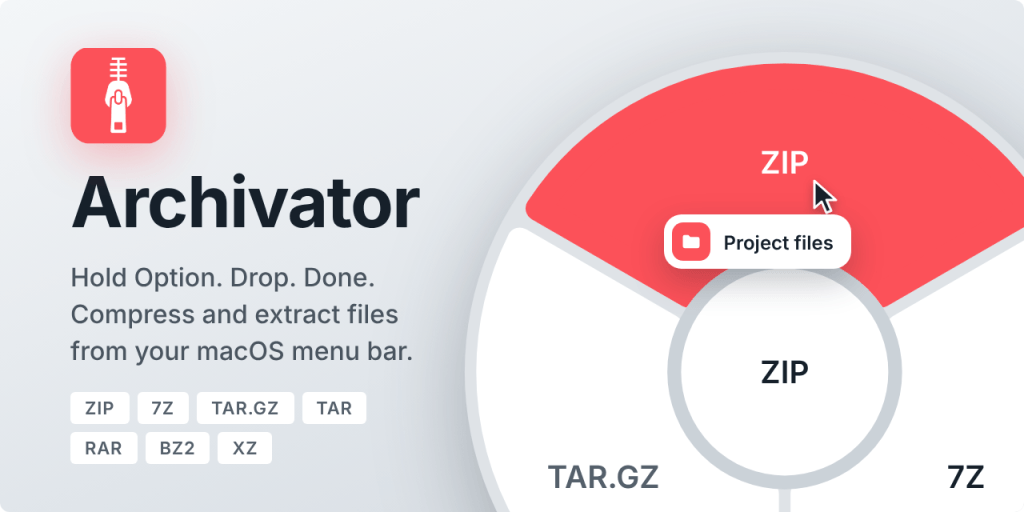
Archivator is a free open-source application for macOS that compresses or unpacks files without opening windows: you drag the files, hold down the button while dragging, and drop them into the selection in the circular menu.
Why I made it
Converter It convinced me that scrolling through the menus was faster than using the wheel. I wanted to keep the same workflow for the archives as well: no opening windows, no searching through menus, in a few seconds.
Many open source tools have made my work easier over the years, so I’m also sharing this publicly: it’s free, the license is open source. MIT, The code is on GitHub. The wheel is the same as in the Konverter, so it will be ready for you immediately.
How it works
The archivist lives in the menu bar and stays dormant all the time until you need it.
- Start Archivator.
- Drag one or more files or folders from the Finder.
- While pulling, hold down the button (default) ⌥ Option). When the cursor is moved, a wheel appears.
- Drop the file to the selection.
If you are pulling ordinary files or folders, the wheel offers three compression formats: ZIP, 7Z and TAR.GZ. If you are only pulling already compressed files (ZIP, 7Z, …), the wheel offers unpacking into a new folder next to the archive or unpacking into a folder you choose yourself.
Lowering the center of the wheel or between cuts does nothing. During the process, the center of the wheel shows progress: the percentage when you compress more files, the size of the written archive for one file, or the elapsed time when unpacking. You can drag the wheel to the side during the process, with Esc and you cancel the work.
The result is saved alongside the original. If the name is already taken, a number is added (Project 2.zip). Existing files are never overwritten by Archivator.
Formats
The archivist compresses into three forms and unpacks eight.
| Action | Formats |
|---|---|
| Pressing | ZIP, 7Z, TAR.GZ |
| Unpacking | ZIP, 7Z, TAR, TGZ, GZ, BZ2, XZ, RAR |
RAR only unpacks; it cannot be compressed. At once you can drop several files.
How to unpack RAR on Mac
Drag the RAR archive from Finder, hold down ⌥ Option and drop it into a new folder next to the archive or into a folder you choose yourself. Existing files are not overwritten by Archivator. RAR can only unpack files; compressing them is not possible.
Compression settings
In the settings, you can adjust the compression to suit your workload:
- Level (Fast, Balanced, Best): Best is the smallest file, but it takes the longest. Fast is fast, but the file is slightly larger.
- Store already compressed filesThe video, photos, music, and archives are not compressed again because they are almost not reduced. The archivist recognizes this by the endings. The work is thus much faster, and the archive is no longer larger than the original.
- Cross-platform ZIP: Deletes folders from the ZIP file
__MACOSXand files.DS_Store, So that the archive on Windows opens completely. - ResultThe result is saved alongside the original, or you choose the folder yourself each time you press the button (Ask where to save).
Which format to choose
For sending to others, choose ZIP; for storage 7Z; for servers TAR.GZ.
- ZIP It opens everywhere, even on Windows without additional programs. The safest choice when sending a file to someone else.
- 7Z Usually the smallest archive is given. The recipient needs a program that opens 7Z (for example, on Windows). 7-Zip).
- TAR.GZ is a common format in Linux, servers, and in development tools.
With video, photos, and music, the size almost never decreases in any format because these files are already compressed. When setting Store already compressed files, such compression is at least quick.
What it does in the background
The archivist stays idle until you press the mouse button. The processor only works during pressing and unpacking, and once a day it optionally checks for updates on GitHub. The files do not leave the computer.
Unpacking uses a system tool tar: paths with .. rejects; it makes the absolute path relative; however, if the archive tries to write outside the target folder via symbolic links, unpacking stops and the partially unpacked folder is removed.
Settings and appearance
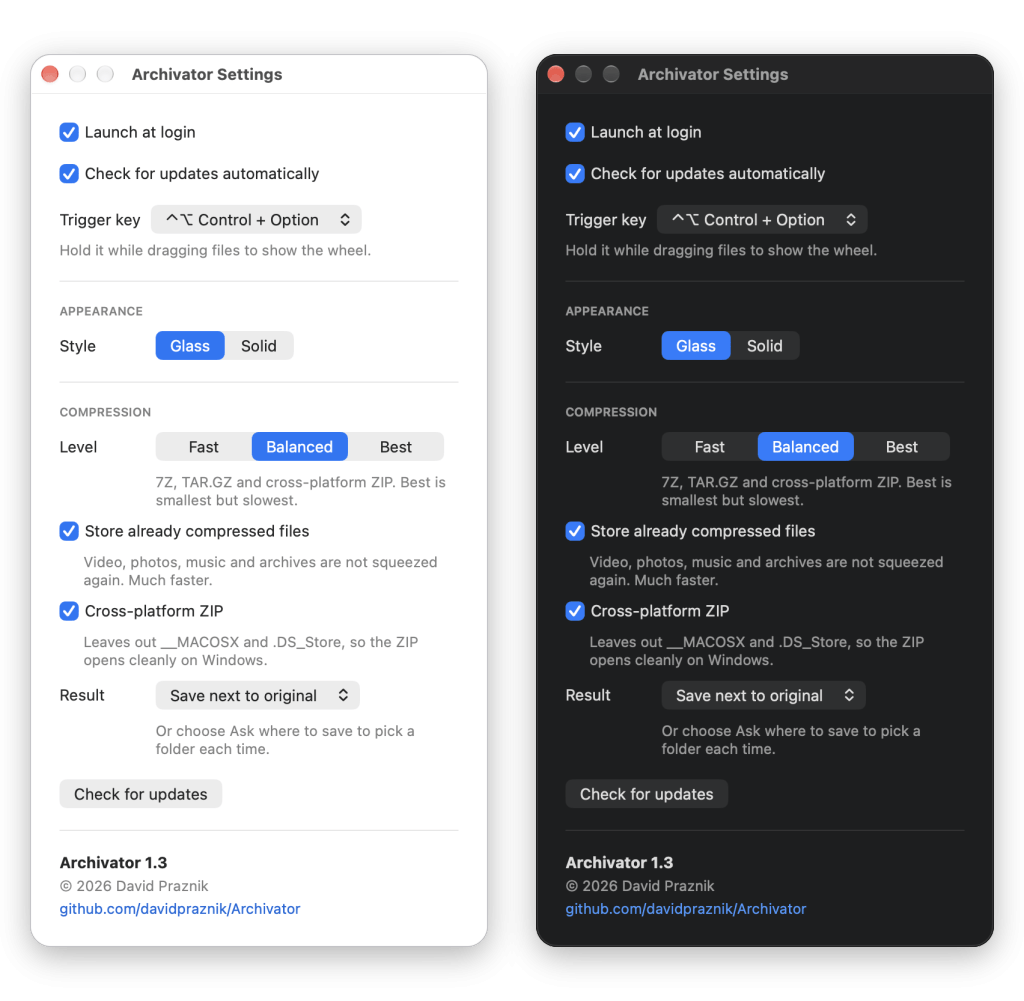
You open the settings with the icon in the menu bar.
- Automatic startup upon login and automatic checking of updates (via GitHub, once a day, optional).
- Button for the wheel: ⌥ Option (default), ⌃ Control or ⌃⌥ Control + Option. If Option is bothering you, for example when switching between applications while holding a file, replace it. Shift and Command belong to the Converter, so both applications can work at the same time.
- The appearance of the wheel: Glass (transparent) or Solid (full color).
Requirements, notes and transfer
The archivist needs macOS 14.6 or later. It has been tested only on macOS 27.
There are three notes that apply before the transfer:
- It is not in the App Store and has not been reviewed by Apple (it is not notarized), so it must be opened manually the first time it is started. Try opening it, closing the warning, then in System Settings > Privacy & Security Click at the bottom Open Anyway next to the message about Archivator. This is only required once.
- It does not use the App Sandbox. Drag detection does not require any special permissions.
- The interface is in English.
Download it to GitHub. The source code is open source (MIT license), and any bugs and ideas are welcome in the tab. Issues.
If you are still looking for file conversion, check Converter, my second application in the menu bar. Both can operate simultaneously, as the Konverter uses Shift and ⌘ Command, and the Archivator uses ⌥ Option.


